Zum Inhalt springen

Create a digital escape room for your students, with no student login

A digital escape room for class is a set of virtual locks: you write the clue, you set the answer, and you hide the next task behind it. Students open one short link or scan one QR code in the browser they already have. There is no student login, no student account, and nothing to install. Only the teacher has an account.

Jetzt ausprobieren · Mathe

Mathe

Hinweis:

Ein Dutzend Dutzend. Drei Ziffern.

Acht Fächer, acht Schlösser, ein Escape Room

Jede Karte ist ein echtes Schloss, so gestaltet, wie eine Lehrkraft es gestalten kann. Wählen Sie eines aus, um es in der Demo zu spielen. In dieser Reihenfolge ergeben sie eine zusammenhängende Geschichte, und jede Enthüllung schickt die Klasse zum nächsten Fach.

Designs, gefilmte Öffnungsanimationen und Feiereffekte schmücken jedes dieser Schlösser. Jeder Schlosstyp und jede Enthüllung, auch Sudoku, Wordle und die HTML-Abschlüsse, funktioniert auf die gleiche Weise.

What does a teacher get, and what does it cost?

You can build and preview a lock before paying anything. Players never pay and need no account. See current plans and features on the pricing page.

In every lock you make

  • A single lock, or a chain of steps where each answer opens the next task.
  • Every one of the 15 lock formats and every kind of reveal.
  • Unlimited players and unlimited attempts.
  • A short link and a downloadable QR code for every lock.
  • With the year, published locks stay live and playable all school year.

When you want more

  • Themes, the 55 filmed unlock animations and the celebrations.
  • A timer, a start date, an access code and a cap on players.
  • Per-student results, the CSV export and the leaderboard.

How to set it up

  1. 1

    Write the clue and set the answer

    Pick a lock format, write the question, and type the answer the lock opens on.

  2. 2

    Hide the next task behind the lock

    The reveal can be an answer key, the next worksheet, a link, or the clue to the next station.

  3. 3

    Test it before you sign up

    Play the lock in the builder's preview, the way a student will, before you create an account.

  4. 4

    Publish and share the link or the QR code

    Publish from your teacher account. Students open the link or scan the code, with no student login.

No student login, and no student account

Students do not create an account and are not asked to sign in. They open the link, type an answer, and see what you hid. The answer is checked on the server (every format except the melody lock), so it is not sitting in the page for someone to read. A class can play at the same time: every phone is its own session, and players and attempts are unlimited.

Virtual locks that stay live all school year

With the year, a published lock stays live and playable all school year: the link you shared in September still opens in June. You can build and test the lock before you create an account, and publish it when the lesson is ready.

A QR code for the board, the desk, or the worksheet

Every published lock comes with a short link and a QR code you can download. Project one code for the whole class, print one per station, or drop the link into the homework. Change the clue or the answer later and the same printed code still works: it points at the lock, so you do not reprint the room when the puzzle changes.

Filmed unlock animations, when the class gets it right

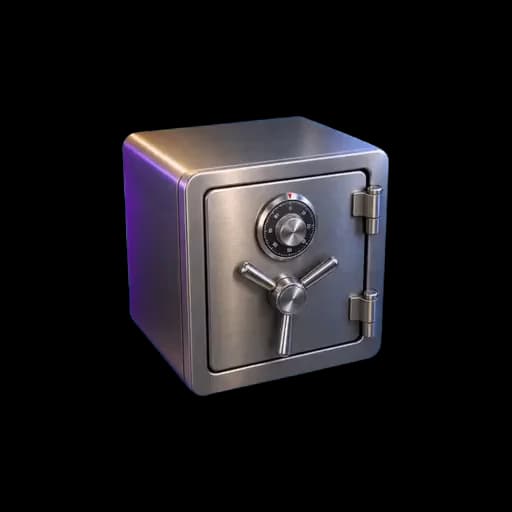
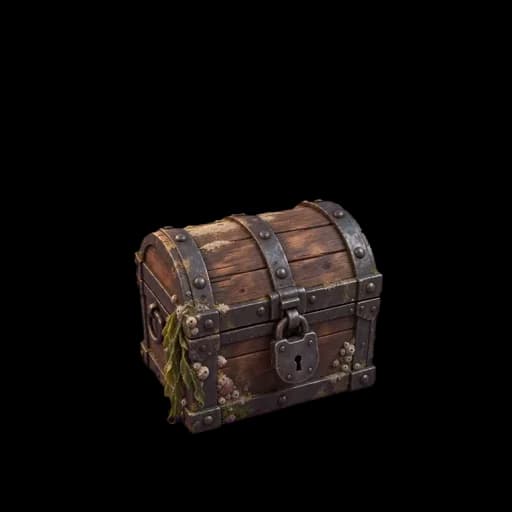
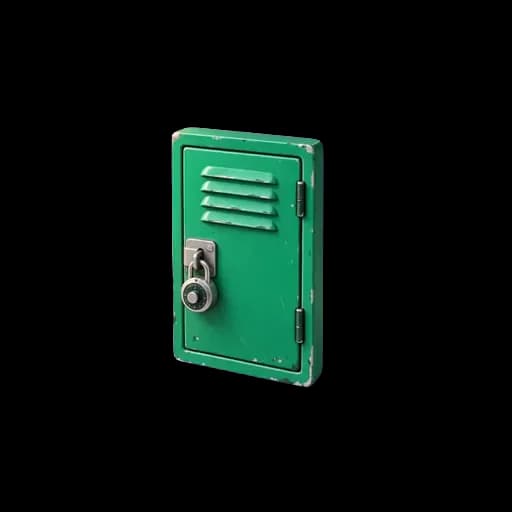
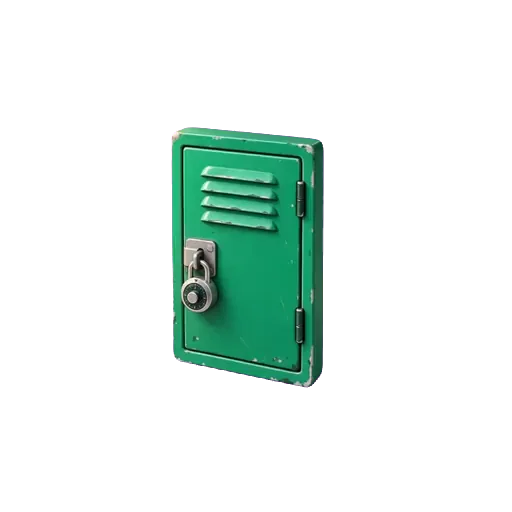
The lock can open as a filmed object: a locker, a treasure chest, a safe, and 55 objects in all. It fidgets while the class is still working and opens on video, with sound, when the answer is right, and the reveal appears inside the opened object. For a quick homework reveal, a lock can also open plainly.

Google Forms or Lock Challenge?

Google Forms is free, has no limit on forms, and is already in Google Classroom. If you already build escape rooms with Forms response validation, it remains a good choice, and it is the one to use when you need many rooms at once at no cost. Lock Challenge is built for the lock itself: each question is a real lock with its own link and QR code, which suits stations and scavenger hunts, and the answer is checked on the server (every format except the melody lock), so it is not sitting in the page.

How teachers use it

  1. 1

    Homework reveal

    Hide tomorrow's answer key, the next worksheet, or the reading link behind a code that is in today's homework. Students who did the work open the lock at home, on a phone, with no login.

    Play this lock: Kevin failed 4 times. Can you open the answer key? →
  2. 2

    Station rotation

    One lock per station, one QR code on the table. A group scans, solves, and moves to the next table. Each browser plays its own session, so a group that finishes early does not see another group's screen.

  3. 3

    Scavenger hunt

    Hide a QR code at each stop in the room, the library, or the playground. Solving one lock reveals the clue for the next stop, and a chain of steps turns the whole trail into one game.

Wie funktioniert ein mehrstufiger Escape Room?

Ein mehrstufiger Escape Room ist eine Kette von Schlössern. Jede richtige Antwort öffnet den nächsten Schritt, und die letzte öffnet das Finale. Niemand kann vorspringen: Schritt zwei bleibt verschlossen, bis Schritt eins gelöst ist, sodass eine Gruppe immer an derselben Frage arbeitet. Das ist die fertige Vorlage mit drei Fächern, genau so, wie eine Klasse sie spielt.

  1. Schritt 1Zahlencode (PIN)

    Mathe: das Eierschloss

    Im Schrank stehen zwölf Kartons mit je zwölf Eiern 🥚.
    🍳 Die Kantine nimmt einen vollen Karton für ein Riesenomelett.

    Wie viele Eier sind übrig? 🔢 Drei Ziffern.

    ✓ Richtige Antwort: Das sieht die Klasse

    Schrank offen.

    Der Biologieschrank geht auf.

    Darin: eine Pflanze unter einer Lampe und ein Etikett, dessen Wort abgerissen wurde.

  2. Schritt 2Geschriebene Antwort

    Biologie: das Rezept der Pflanze

    Diese Pflanze 🌱 stellt ihre Nahrung selbst her, aus Sonnenlicht, Wasser und Kohlendioxid, und gibt Sauerstoff ab.

    🤔 Wie heißt dieser Vorgang? ✏️ Ein Wort.

    ✓ Richtige Antwort: Das sieht die Klasse

    Titelseite.

    Hinter dem Blumentopf eine alte Schlagzeile:

    „EIN KLEINER SCHRITT FÜR EINEN MENSCHEN“

    Das Datum wurde abgerissen.

  3. Schritt 3Zahlencode (PIN)

    Geschichte: das abgerissene Datum

    Die Zeitung 📰 erzählt von Apollo 11 🚀 und den ersten Schritten eines Menschen auf dem Mond.
    Sie fanden im letzten Jahr der 1960er-Jahre statt.

    Welches Jahr? 🔢 Vier Ziffern.

    ✓ Richtige Antwort: Das Finale öffnet sich, siehe unten

FinaleHTML

Die letzte Enthüllung, in HTML-Blöcken geschrieben: eine Überschrift, ein Ticket und ein Stempel, in den Farben des Schlosses.

Drei Fächer, eine Klasse

Die Klasse ist draußen.

Die Tür des Klassenzimmers schwingt auf. Jedes Schloss hat nachgegeben, und Sie haben es gemeinsam hinausgeschafft.

Gut gemacht

Schreiben Sie Ihre Zeit an die Tafel. Die nächste Gruppe hat einen Rekord zu schlagen.

Tür offen

Sie können einzelne Schlösser oder mehrstufige Escape Rooms veröffentlichen und sie erstellen und testen, bevor Sie etwas bezahlen. Jeder Schritt hat seine eigene Frage, sein eigenes Schloss, seinen Tipp, seine Fehlermeldung und seine Enthüllung.

Die drei Schritte spielen →

Bis ins letzte Detail gestaltet

Gestalten Sie jedes Pixel des Schlosses und sehen Sie zu, wie es sich im Film öffnet.

Nichts auf dem Bildschirm ist festgelegt. Wählen Sie ein Theme, ein gefilmtes Objekt, das unruhig wackelt, solange das Schloss hält, und sich mit Ton per Video öffnet, sobald der Code stimmt, dann eine Feier für den Moment der Öffnung. Legen Sie Schriftart und Schriftgröße fest und enden Sie mit Ihrer eigenen Enthüllung. Ihre Spieler sehen genau den Bildschirm, den Sie gestaltet haben.

Alles, was Sie an einem Schloss gestalten können →

Farben

51 Themes, und weitere im Editor. Jedes färbt das Schloss, seine Tasten und seinen Button.

Videoanimationen

55 gefilmte Objekte, die wackeln, solange das Schloss hält, und sich mit Ton per Video öffnen, sobald es nachgibt.

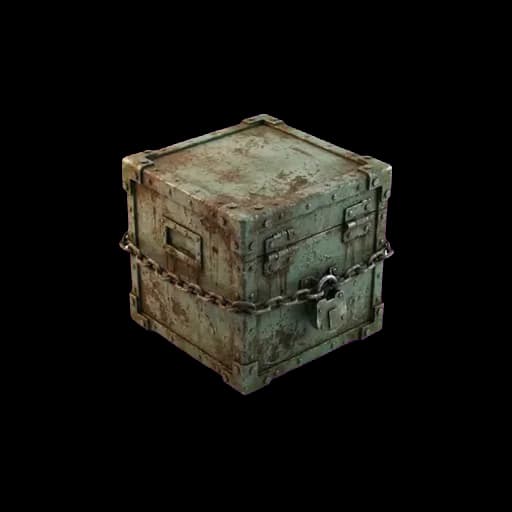
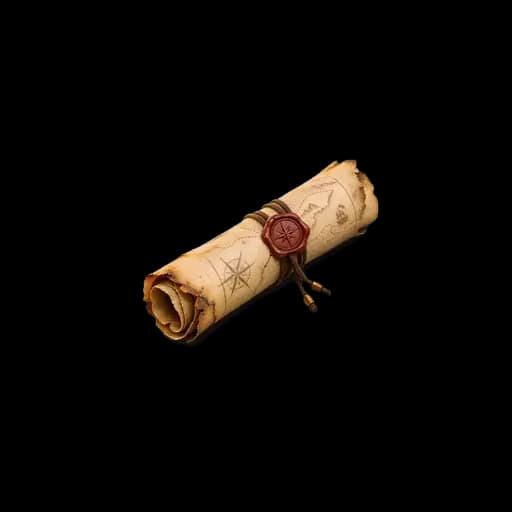
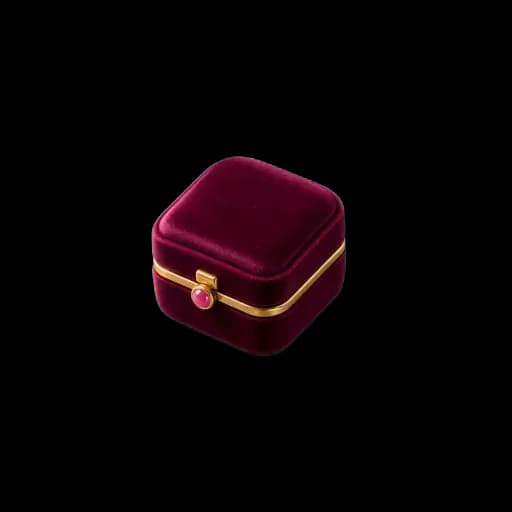
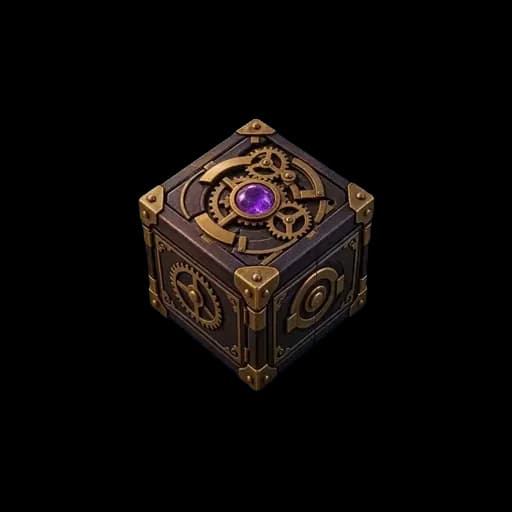
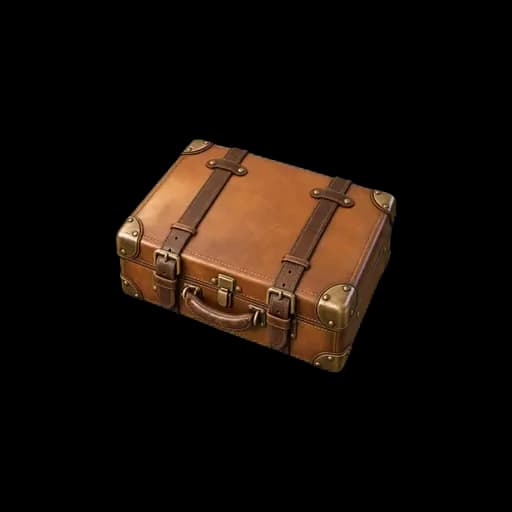
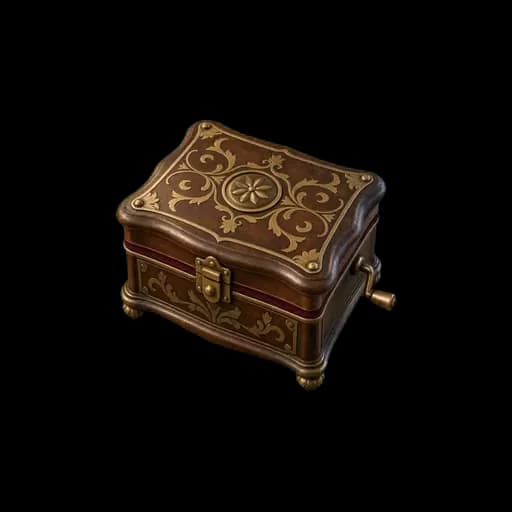
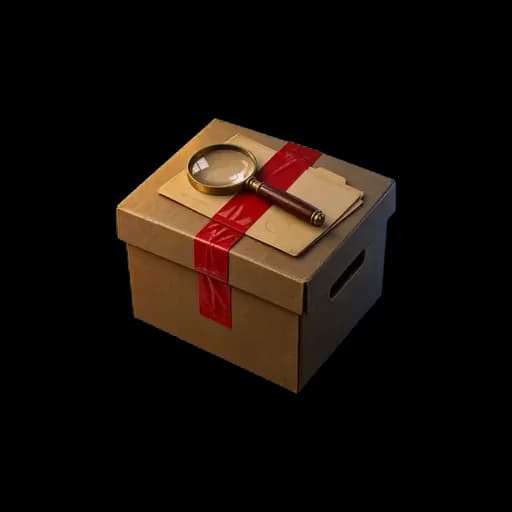
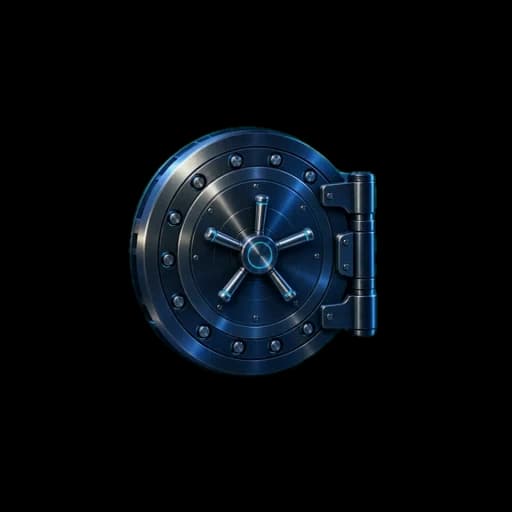
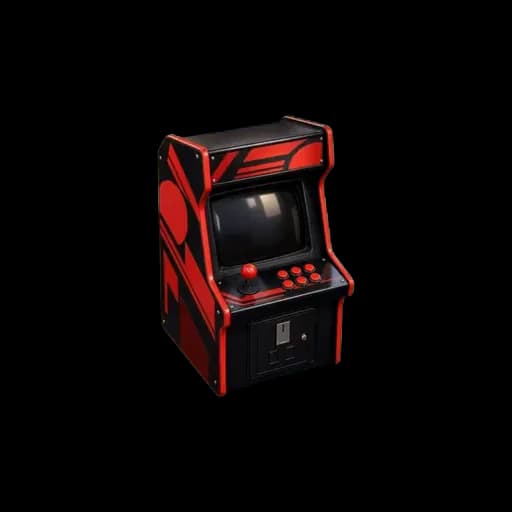
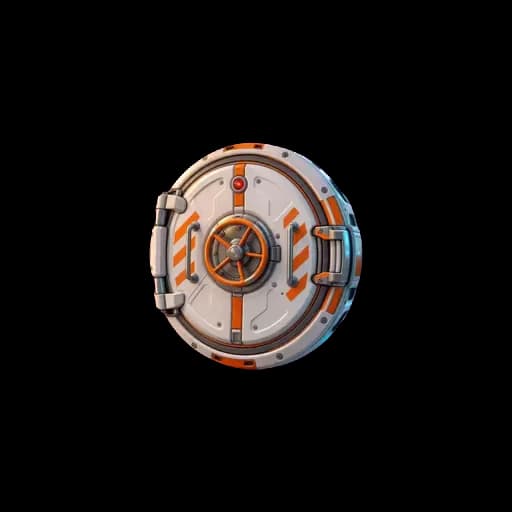
Leere rostige KisteSchriftrolleRingschachtelLeere RätselboxTresorPiratentruheChampagnerkisteSpindKofferSpieluhrBeweismittelkisteTresortürGeschenkboxSpielautomatLuftschleuse

Schriftart und Größe

37 Schriftarten und 6 Textgrößen, vom Smartphone in der Hand bis zum Bildschirm am anderen Ende des Raums.

Oder Ihre eigenen zwei Bilder

Laden Sie ein geschlossenes und ein offenes Bild hoch: das Paket eingepackt, dann das, was darin war.

Jedes Theme, jede gefilmte Animation, jede Feier und jede Schriftart lässt sich vor dem Veröffentlichen in der Live-Vorschau ausprobieren.

Eigenes erstellen →
51
Themes
55
gefilmte Animationen
37
Schriftarten
36
Feiern
15
Schlosstypen
7
Spielersprachen

Vorlagen

Spielbare Beispiele, die Sie mit einem Klick kopieren. Probieren Sie eines aus und machen Sie es dann zu Ihrem eigenen.

Escape-Spiel fürs Klassenzimmer
Leicht30 Min.3 Schritte

Escape-Spiel fürs Klassenzimmer

Drei Fragen aus drei Fächern, ein gemeinsamer Bildschirm, jede Antwort öffnet die nächste. Gemacht für eine Klasse von dreißig, ohne weiteres Material als den Beamer.

Verwendete Schlösser: Zahlencode (PIN), Geschriebene Antwort

Verfügbar auf: EN · FR · ES · CA · PT · KO · DE

Beispiel spielen
Klassenquiz
Leicht15 Min.1 Schritt

Klassenquiz

Eine Frage, eine Antwort, dahinter das nächste Material. Der schnellste Weg, ein Schloss im Unterricht einzusetzen.

Verwendete Schlösser: Geschriebene Antwort

Verfügbar auf: EN · FR · ES · CA · PT · KO · DE

Beispiel spielen
Mini-Escape-Room
Mittel25 Min.3 Schritte

Mini-Escape-Room

Drei Räume, drei Mechaniken, ein finaler Code. Das kürzeste vollständige Escape-Spiel, das sich in einem einzigen Raum spielen lässt.

Verwendete Schlösser: Zahlencode (PIN), Farbfolge, Wischmuster

Verfügbar auf: EN · FR · ES · CA · PT · KO · DE

Beispiel spielen

More for the classroom

Questions teachers ask

How much does it cost?
You can build and preview a lock before paying anything. Players never pay and need no account. See current plans and features on the pricing page.
Do students need an account?
No. There is no student login and no student account. Students open a link or scan a QR code and play in the browser. Only the teacher creates an account, and only to save and publish the lock.
Can I build a whole escape room, not just one lock?
Yes. Chain several locks into one game, so each answer opens the next task, and share it on one link or one QR code.
Can I add a timer or see each student's result?
Yes. You can add a timer, a leaderboard, per-student results and a CSV export, as well as themes, the 55 filmed unlock animations and the celebrations.
Can I share it with a QR code?
Yes. Every lock includes a downloadable QR code and a short link. Project it, print it, or send the link. The same code keeps working if you change the clue or the answer.
Can a whole class play at the same time?
Yes. Project one QR code, or let each group open the link on its own phone. Each device plays its own session, and there is no cap on players.

Create a lock for your next lesson.

One question and one reveal is already a complete activity. Build and test your first lock in minutes.

Start creating your challenge →